WhatsApp Status Not Uploading? 8 Fixes
In this guide
- 1. Check your internet connection
- 2. Find out if WhatsApp has a problem
- 3. Check the video length and file size
- 4. Use a common video format
- 5. Update WhatsApp and your phone
- 6. Close WhatsApp and restart your phone
- 7. Check permissions, data saver and storage
- 8. Clear the app cache (Android) or reinstall as a last step
- If only one video will not upload
- If your status uploaded but contacts cannot see it
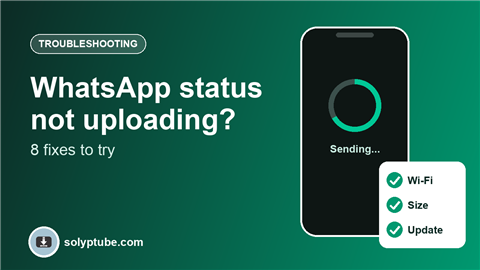
You post a photo or video to your WhatsApp status and it stays on "sending", shows a red error or never appears. Usually the cause is simple: a weak connection, a file that is too big, or an old app. Try the fixes below in order, starting with the quickest.
1. Check your internet connection
- Switch between Wi-Fi and mobile data and try again.
- Turn airplane mode on for ten seconds, then off.
- Open a web page. If it is slow, the problem is your connection, not WhatsApp.
2. Find out if WhatsApp has a problem
If WhatsApp itself is having trouble, nothing on your phone will fix it. Check WhatsApp's official channels or an outage-tracking website. If many people report the same problem, wait and try again later.
3. Check the video length and file size
WhatsApp limits how long a status video can be, and very large files can fail to upload. If your video is long, trim it, or split it into two parts. See our guide to the best video size for Reels, Shorts and Snapchat for the right shape and length.
4. Use a common video format
MP4 works best. Some files in other formats do not upload or play correctly. If you are not sure, read MP4 vs WebM vs MOV.
5. Update WhatsApp and your phone
Open the App Store or Google Play, search for WhatsApp and tap Update if you see the button. Install any waiting system update for your phone too.
6. Close WhatsApp and restart your phone
Swipe WhatsApp away from your recent apps, open it again and try once more. If that does not work, restart the phone.
7. Check permissions, data saver and storage
- Allow WhatsApp to use mobile data in your phone settings, including background data.
- Turn off data saver, low data mode and battery saver for a few minutes.
- Allow access to photos and storage, so WhatsApp can read the file.
- Free some space if your phone is almost full.
8. Clear the app cache (Android) or reinstall as a last step
On Android, open Settings, then Apps, then WhatsApp, then Storage, and clear the cache. This removes temporary files only. Do not clear the data. Reinstall only as a last step, and only after you make sure your chats are backed up.
If only one video will not upload
If other photos and videos upload fine, the problem is that file. Try trimming it, saving it again as an MP4, or posting a shorter version.
If your status uploaded but contacts cannot see it
Check your status privacy settings in WhatsApp. They decide which contacts can see it. Also remember that a status disappears after 24 hours.
Want to post a YouTube link as a status instead? See how to share a YouTube video as a WhatsApp status.
Frequently asked questions
Why is my WhatsApp status stuck on sending?
The usual causes are a weak connection, a file that is too large or too long, or an old version of the app. Work through the fixes above in order.
Why won't my video upload to WhatsApp status?
The video may be too long or too large. Trim it, save it as an MP4 and try again.
Will clearing the cache delete my chats?
No. The cache holds temporary files. Do not choose Clear data, since that can remove your chats if they are not backed up.
Is it my phone or WhatsApp?
Try another app that uses the internet. If other apps work and only WhatsApp does not, update or restart WhatsApp. If many people report the same problem online, it is probably WhatsApp.
Why do statuses load on Wi-Fi but not on mobile data?
Data saver may be limiting the app, or the mobile signal may be weak. Turn off the data saving setting and test in a place with better signal.
Need help with a link?
Our Help page has quick answers and a checklist for links that do not work.
Open Help & FAQ